
If you need to tune your instrument, there is a tuning fork at the top of the score.
Your device’s microphone must be on. To switch it on, please go to your device settings and allow microphone access to Tomplay.
- Allow microphone access on Android app
- Allow microphone access on iPad
- Allow microphone access on iPhone
- Allow microphone access on Windows app
- Allow microphone access on MAC app
Begin by playing the relevant notes on your instrument, while observing the tuner. It identifies and displays the note you’re playing and the colors indicate whether it's too low (flat) or too high (sharp). Adjust accordingly.
Here’s an example with the note E.
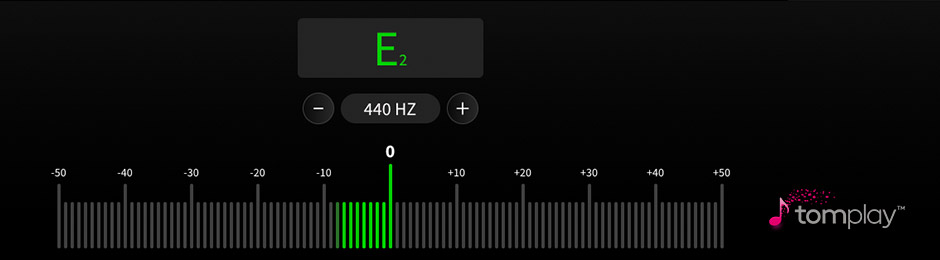
I’m in tune when the correct note is displayed, and when the pitch indicator is showing the green colour, as close to 0 as possible.
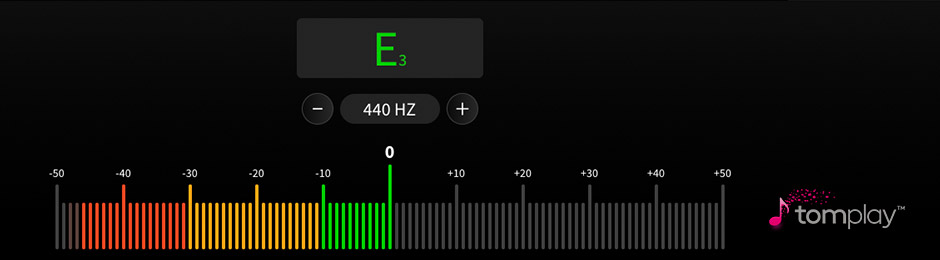
I am too low (flat) when the correct note is showing, but the colour orange or red appears on the negative values.
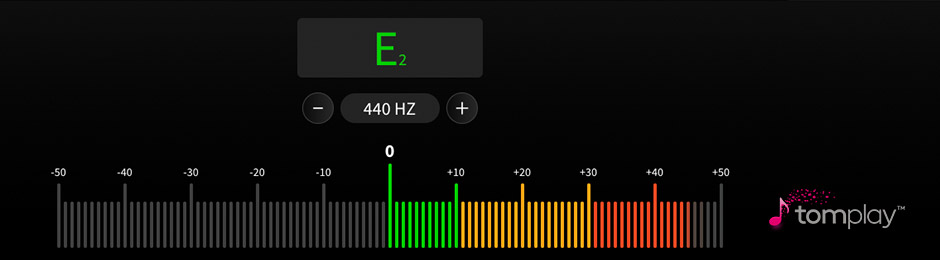
I am too high (sharp) when the correct note is showing, but the colour orange or red appears on the positive values.
Ensure the displayed letter name matches the note you’re playing; discrepancies suggest significant tuning issues that may require further adjustments.
Remember, the first time you tune your instrument with our online tuner might be a bit difficult and time-consuming. However, with practice, it will become a quick and routine task! Explore your instrument’s tuner page for a more detailed process, along with additional tips and tricks.
You can also adjust the audio accompaniment pitch in “Settings” to match the tuning of your instrument.
Comments
0 comments
Please sign in to leave a comment.